S91 Download – Access S91 on Mobile & Desktop
How Does S91 Download Work?
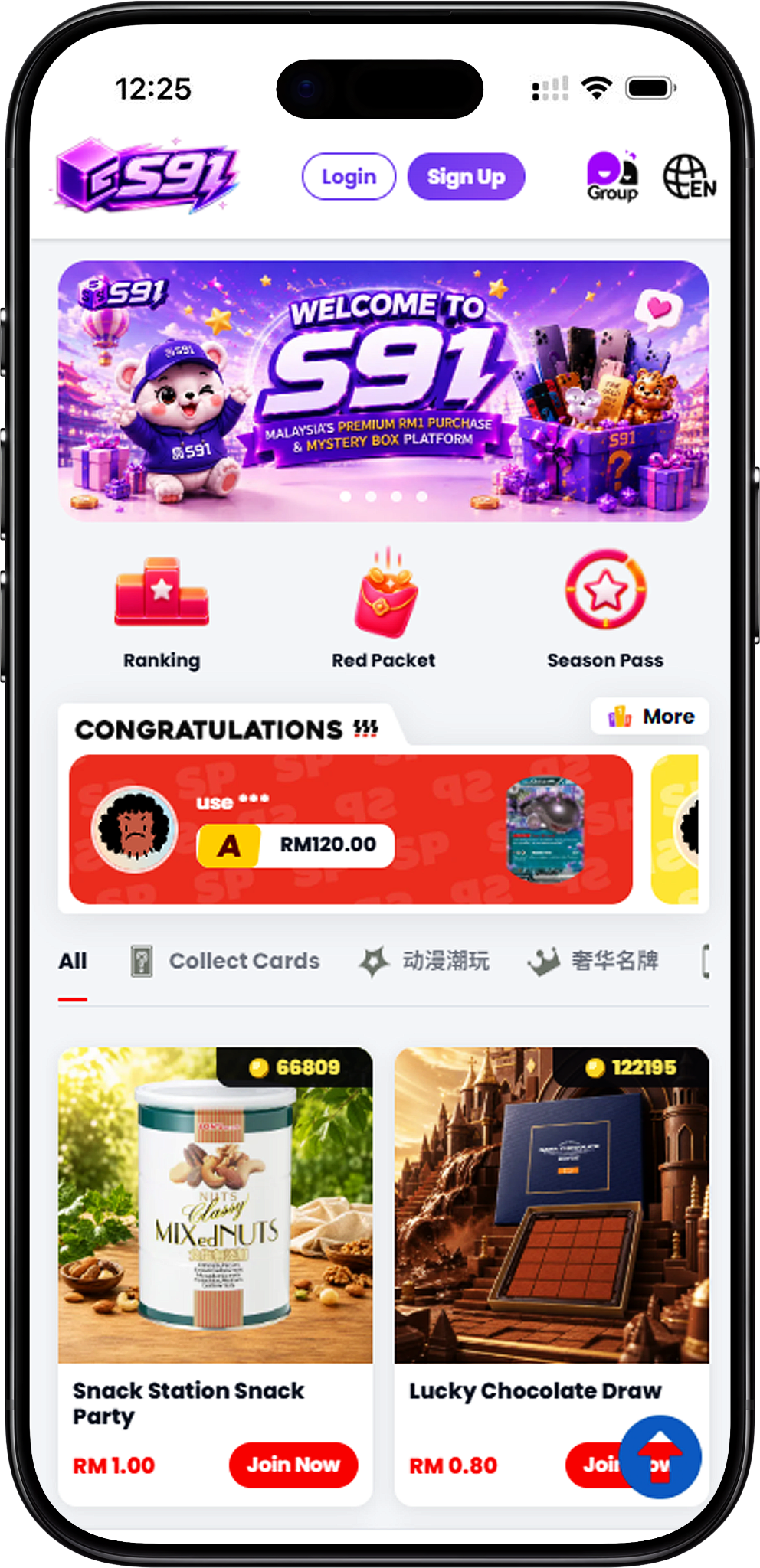
The S91 Download process depends on the device you use. Selecting the relevant Download button on this page takes you to the S91 Official website. From there, mobile users can add S91BOX to their home screen, while Desktop users can create a shortcut for faster access.
Mobile Access
Android and iOS users can add the S91 website to their device home screen. Once added, the S91 icon provides a convenient shortcut for opening the platform from your phone or tablet.
Desktop Access
Windows and macOS users can create a shortcut to S91 from a supported browser. The available method differs depending on the browser and operating system.
S91 Download for Android
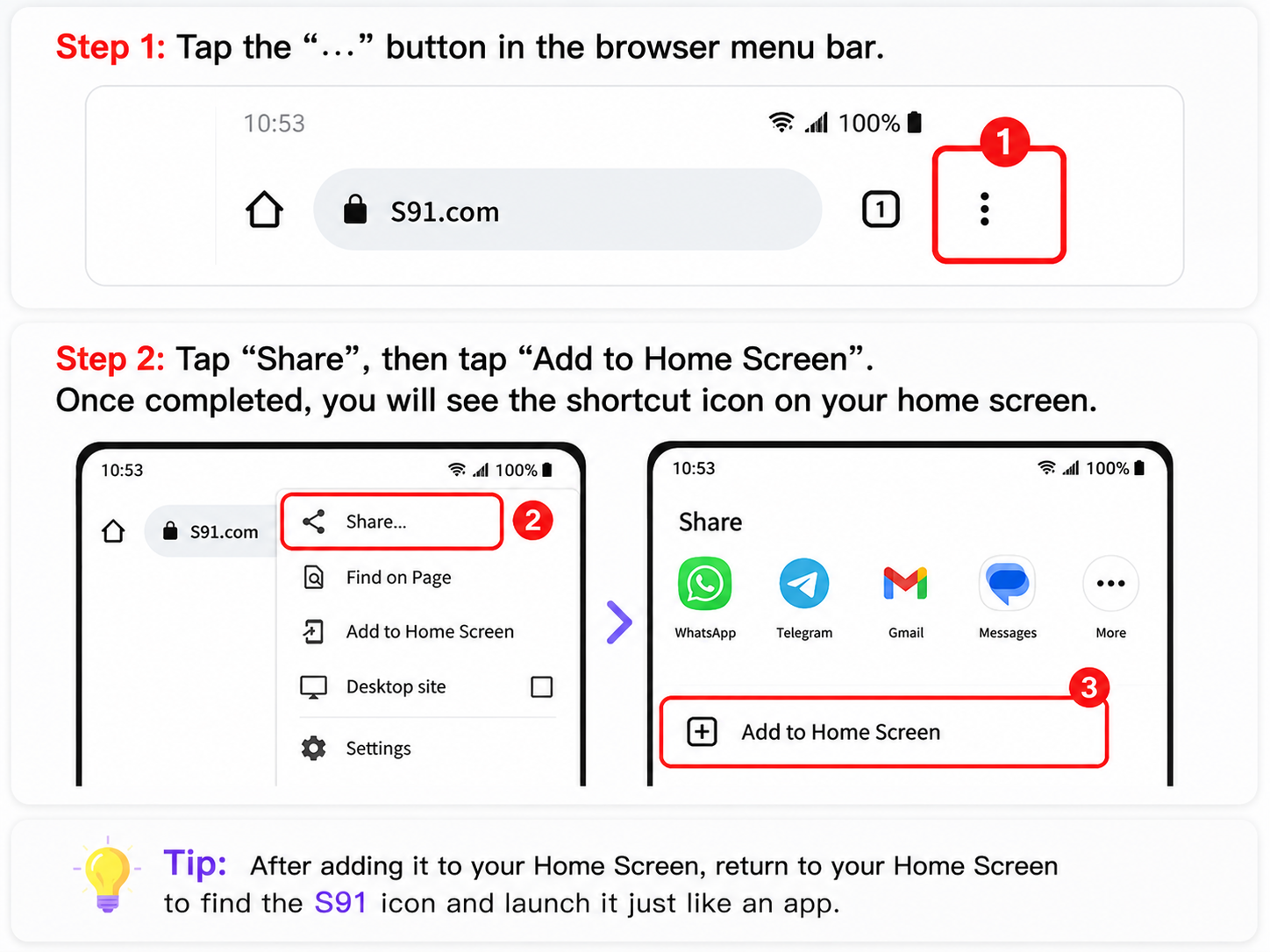
Android users can access S91BOX through Chrome and add the website directly to the home screen. This creates an S91 shortcut icon that can be opened similarly to an App from the Android home screen.
Step 1: Open Chrome on Android
Open Google Chrome on your Android phone or tablet to begin the S91 setup process.
Step 2: Visit the S91BOX Website
Enter https://s91box.com/ in the Chrome address bar and open the website. Wait for the page to load before continuing.
Step 3: Open the Chrome Menu
Tap the three-dot menu (⋮) in the browser menu bar to view the available Chrome options.
Step 4: Choose Add to Home Screen
Select “Add to Home screen” from the available browser options. Depending on the Chrome interface, you may first need to select “Share” and then choose “Add to Home Screen.”
Step 5: Name the S91 Shortcut
Enter a name for the shortcut, such as “S91,” and confirm the action. The S91 icon will then appear on your Android home screen for convenient access.
If Chrome Shows Install App
Chrome may sometimes display “Install app” instead of “Add to Home screen.” If this happens, try refreshing the page. If necessary, switch to Airplane Mode temporarily, reload the relevant option, and then restore your internet connection.
S91 Download for iOS
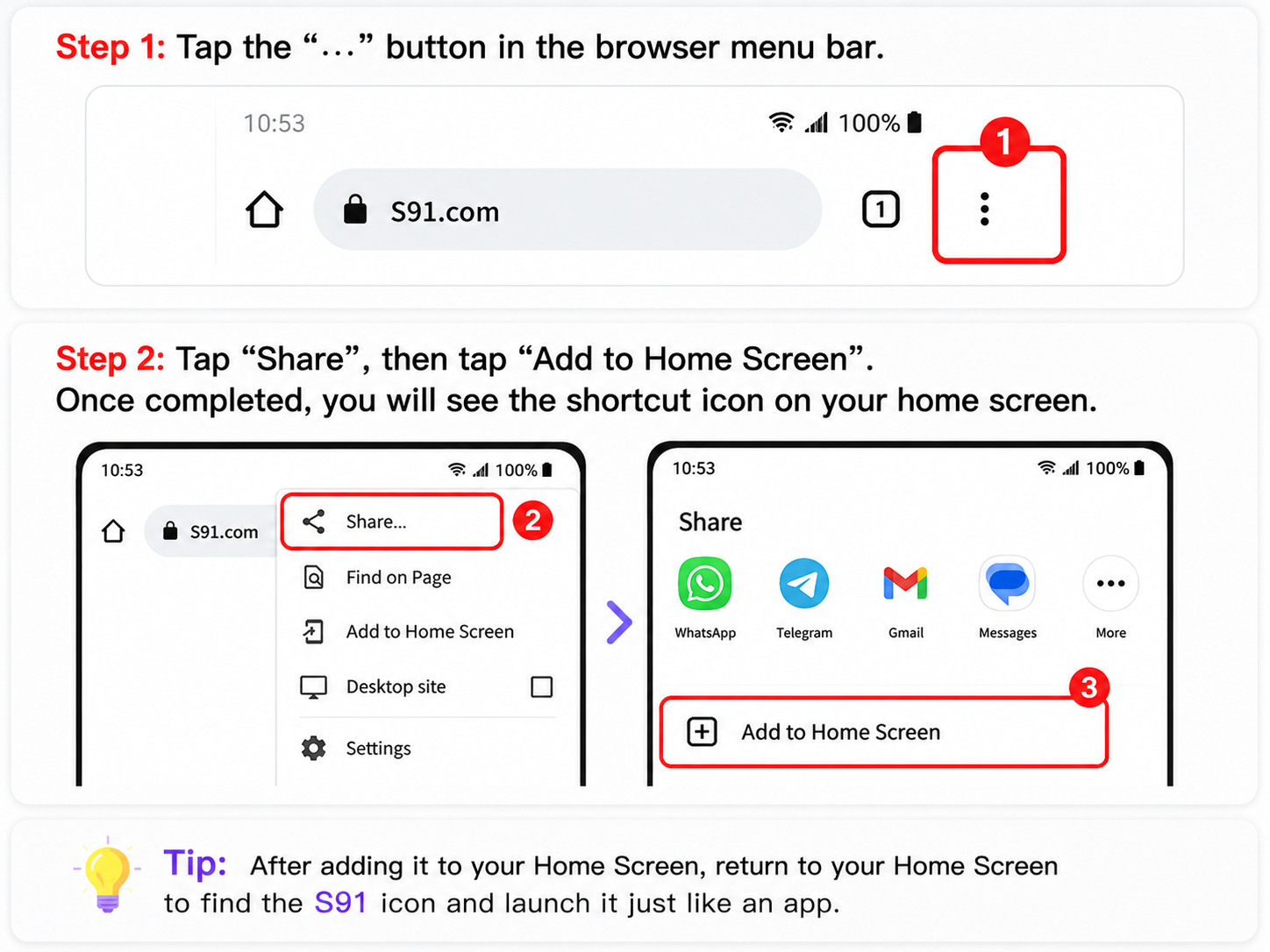
iPhone and iPad users can add S91BOX to the iOS Home Screen through Safari. Use Safari for this process and follow the steps below to create the S91 shortcut.
Step 1: Open Safari
Open Safari on your iPhone or iPad. The Add to Home Screen process for iOS should be completed through Safari.
Step 2: Visit the S91BOX Website
Go to https://s91box.com/ in Safari and allow the S91 page to load.
Step 3: Tap the Share Button
Tap the Safari Share button, represented by a square with an upward arrow, to open the sharing and browser action menu.
Step 4: Select Add to Home Screen
Find and select “Add to Home Screen” from the available Safari options.
Step 5: Name and Add S91
Customize the shortcut name if required, such as “S91,” then tap “Add.” The S91 icon will appear on your iPhone or iPad Home Screen.
S91 Download for Windows
Windows users have several ways to create convenient Desktop access to S91. You can create a standard website shortcut or use supported Chrome and Microsoft Edge options.
Method 1: Drag S91 to the Desktop
Step 1: Open S91
Open S91 in Chrome, Microsoft Edge or Firefox on your Windows computer.
Step 2: Drag the Website Icon
Drag the website or lock icon from the browser address bar onto your Desktop.
Step 3: Open the Shortcut
A website shortcut will appear on your Desktop. Double-click it whenever you want to open S91 through your default browser.
Method 2: Create a Chrome Shortcut
Step 1: Open S91 in Chrome
Visit S91 using Google Chrome and open the browser menu.
Step 2: Select Create Shortcut
Navigate through the Chrome menu to the available shortcut creation option and select “Create Shortcut.”
Step 3: Name the Shortcut
Enter “S91” or another preferred name. If Chrome provides an “Open as window” option, you may select it before confirming.
Method 3: Install the Site Through Microsoft Edge
Step 1: Open S91 in Edge
Launch Microsoft Edge and visit the S91 website.
Step 2: Open Apps
Open the Edge menu, select “Apps,” and choose “Install this site as an app.”
Step 3: Complete the Setup
Follow the displayed Edge instructions. Once completed, you can use the available Windows options to access S91 from the Desktop or Start Menu.
Method 4: Create a Shortcut Manually
Step 1: Create a New Shortcut
Right-click an empty area of the Windows Desktop, select “New,” and then choose “Shortcut.”
Step 2: Enter the S91BOX URL
Paste https://s91box.com/ into the shortcut location field and continue.
Step 3: Name and Finish
Enter a name such as “S91” and select “Finish.” The shortcut will be added to your Windows Desktop.
S91 Download for macOS
macOS users can create convenient S91 Desktop access through Safari or Chrome. Both methods create a shortcut that can be used to return to S91 without manually entering the website address each time.
Method 1: Create a Safari Shortcut
Step 1: Open S91 in Safari
Launch Safari on your Mac and open the S91 website.
Step 2: Drag the URL to the Desktop
Drag the URL or website icon from the Safari address bar onto your Desktop.
Step 3: Open the S91 Shortcut
macOS creates a .webloc shortcut. Double-click the shortcut whenever you want to open the S91 website in Safari.
Method 2: Create a Chrome Shortcut
Step 1: Open S91 in Chrome
Launch Google Chrome on your Mac and visit the S91 website.
Step 2: Choose Create Shortcut
Open the Chrome menu and navigate to the available “Create Shortcut” option.
Step 3: Name the Shortcut
Give the shortcut a recognizable name such as “S91” and confirm to create the shortcut.
Optional: Customize the Shortcut Icon
On macOS, you can open “Get Info” for the shortcut and use the available icon preview options if you want to customize how the shortcut appears. This step is optional and does not affect S91 access.
S91 App, Website Shortcut & APK Explained
The setup method differs by device. Android and iOS users can add S91BOX to their home screen, while Windows and macOS users can create Desktop access through their browsers. This page does not require users to search for an unofficial S91 APK file to follow the provided setup instructions.
Android & iOS Home Screen Access
Adding S91 to your mobile home screen creates a convenient shortcut to the website. Tap the S91 icon whenever you want to open the platform through the supported browser-based access.
Windows & macOS Desktop Access
A Desktop shortcut provides a direct path back to S91 from your computer. The exact appearance and behavior depend on the browser and shortcut method you choose.
S91 Download FAQ
How do I complete S91 Download on Android?
Open S91BOX in Chrome, open the browser menu, choose “Add to Home screen,” name the shortcut and confirm. The S91 icon will then appear on your Android home screen.
Can I add S91 to an iPhone or iPad Home Screen?
Yes. Open S91BOX in Safari, tap the Share button, select “Add to Home Screen,” choose the shortcut name and tap “Add.”
Do I need an S91 APK for Android?
The Android setup provided on this page uses the S91BOX website and Chrome’s home screen shortcut option. You do not need to search for an unofficial APK to follow these instructions.
Can I create an S91 shortcut on Windows?
Yes. Windows users can drag the website icon to the Desktop, create a Chrome shortcut, use the Microsoft Edge site installation option, or manually create a shortcut using the S91BOX URL.
Can I create an S91 shortcut on macOS?
Yes. You can drag the S91 URL from Safari to the Desktop to create a .webloc file or use Chrome’s available shortcut creation option.
Where does the Download button take me?
The relevant Download button on this page redirects users to the S91 Official website, where they can continue with the appropriate setup method for their device.
Can I use the S91 home screen icon like an App?
The home screen icon provides convenient access to S91 from your device. Tap the icon to launch the S91 website without manually entering the address each time.
Access S91 on Your Device
Continue to the S91 Official website and follow the Android, iOS, Windows or macOS instructions to create convenient S91BOX access on your device.