S91 Top Up – Complete Your Top Up Easily
How S91 Top Up Works
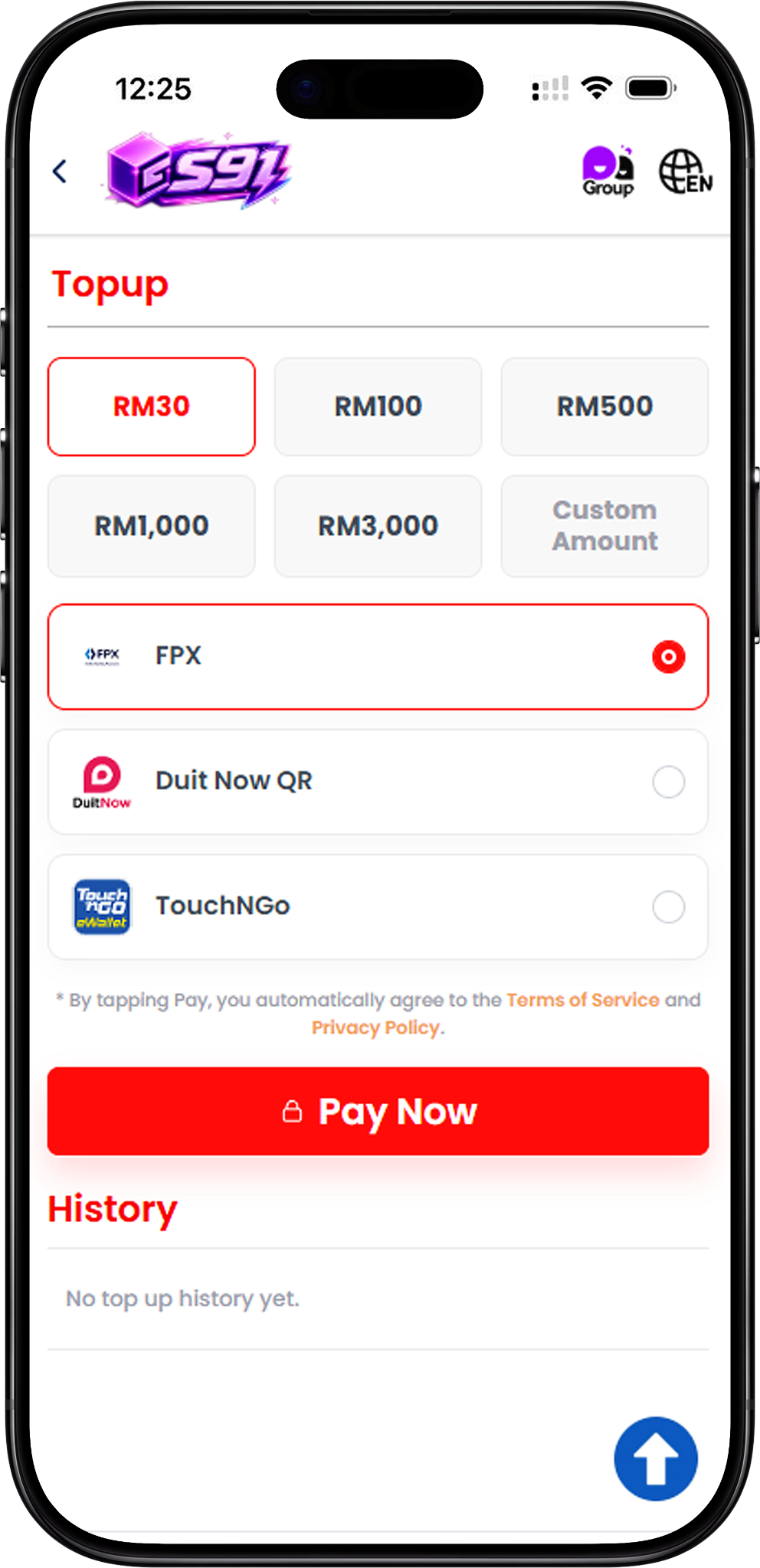
Choose Your Top Up Amount
The S91 Top Up page provides preset amounts of RM30, RM100, RM500, RM1,000 and RM3,000. A Custom Amount option is also available for users who want to enter a different amount.
Select a Payment Method
After choosing the amount, select one of the available payment methods. S91 displays FPX, DuitNow QR and Touch ’n Go as Top Up options. The payment process then continues through the selected payment channel.
S91 Top Up Steps
Step 1 – Open Top Up
Go to the S91 Top Up page to view the available amount and payment options.
Step 2 – Select an Amount
Choose RM30, RM100, RM500, RM1,000 or RM3,000, or select Custom Amount to enter another amount. Check that the selected amount is correct before proceeding.
Step 3 – Choose Your Payment Method
Select FPX, DuitNow QR or Touch ’n Go according to your preferred payment method.
Step 4 – Tap Pay Now
After confirming the amount and payment method, tap Pay Now to continue to the corresponding payment page. By proceeding, users also acknowledge the Terms of Service and Privacy Policy displayed on the Top Up page.
Step 5 – Complete the Payment
Follow the instructions provided by the selected payment channel. The exact payment screen differs depending on whether FPX, DuitNow QR or Touch ’n Go is selected.
Top Up with FPX
Step 1 – Select FPX
Choose your S91 Top Up amount, select FPX as the payment method and tap Pay Now.
Step 2 – Review the Deposit Details
The FPX payment page displays the deposit amount together with transaction information such as the reference number and transaction time. Review the displayed amount before continuing.
Step 3 – Select Online Banking
Choose an available online banking option from the payment page. The displayed options can include Maybank, RHB Bank, Public Bank, AmBank, Hong Leong Bank, CIMB Bank, Affin Bank and Bank Simpanan Nasional.
Step 4 – Complete the Bank Payment
Continue through the selected bank’s payment process and follow the on-screen instructions. Make sure the bank account is activated for online payment processing and avoid submitting the payment more than once.
Step 5 – Keep the Reference Number
Keep the displayed transaction reference number for reference. The payment page advises users not to refresh the browser and to retain the reference number in case Customer Service assistance is required.
Top Up with DuitNow QR
Step 1 – Select DuitNow QR
Choose the required Top Up amount, select DuitNow QR and tap Pay Now to proceed.
Step 2 – Check the Payment Amount
The DuitNow QR payment page displays the order amount and the amount to pay. Confirm that these details match your intended S91 Top Up before scanning the QR code.
Step 3 – Scan the DuitNow QR Code
Use a compatible payment app to scan the displayed DuitNow QR code and proceed with the payment. The QR code can also be downloaded when the displayed payment page provides that option.
Step 4 – Complete Payment Before Expiry
Complete the transaction while the QR code remains valid. The payment screen includes an expiry countdown, so do not proceed if the QR code or order has already expired.
Step 5 – Do Not Reuse the QR Code
The DuitNow QR payment instructions state that the QR code should only be scanned and paid once. Do not reuse the same QR code, and avoid going back or refreshing the payment page while completing the transaction.
Top Up with Touch ’n Go
Step 1 – Select Touch ’n Go
Select the required S91 Top Up amount, choose Touch ’n Go as the payment option and tap Pay Now.
Step 2 – Review Your Order
The payment page displays the amount, date, order ID and S91 as the payment recipient. Check the displayed information before continuing.
Step 3 – Choose the E-Wallet
Under Select Payment Method, choose E-Wallet and select Touch ’n Go from the available e-wallet option.
Step 4 – Confirm the Payment Amount
Check the payment amount shown on the payment button and proceed only when it matches your intended Top Up amount.
Step 5 – Complete the Touch ’n Go Payment
Continue with the Touch ’n Go payment process and follow the instructions presented by the payment service to finish the transaction.
Check Your Top Up History
Review Previous Top Ups
The S91 Top Up page includes a History section below the payment area. Users can refer to this section to check available records of their previous Top Up activity. If no transactions have been recorded, the page displays “No top up history yet.”
S91 Top Up FAQ
What payment methods are available for S91 Top Up?
The S91 Top Up page displays FPX, DuitNow QR and Touch ’n Go as available payment methods.
What Top Up amounts can I select?
The displayed preset options are RM30, RM100, RM500, RM1,000 and RM3,000. A Custom Amount option is also available.
Can I enter my own S91 Top Up amount?
Yes. Select Custom Amount when you want to enter an amount instead of choosing one of the preset options.
How do I Top Up with FPX?
Select your amount and FPX, tap Pay Now, choose an available online banking option on the payment page and follow the on-screen payment instructions.
How do I Top Up with DuitNow QR?
Select DuitNow QR, proceed to the payment page and scan the generated QR code with a compatible payment app. Complete the payment before the QR code expires and do not reuse it.
How do I Top Up with Touch ’n Go?
Select Touch ’n Go on the S91 Top Up page, continue to the payment page, select Touch ’n Go under the E-Wallet option and follow the displayed payment instructions.
Where can I check my S91 Top Up records?
Previous Top Up records can be viewed in the History section of the S91 Top Up page when transaction history is available.
Ready to Top Up Your S91 Account?
Choose your Top Up amount, select FPX, DuitNow QR or Touch ’n Go, and follow the payment instructions to complete your transaction.